

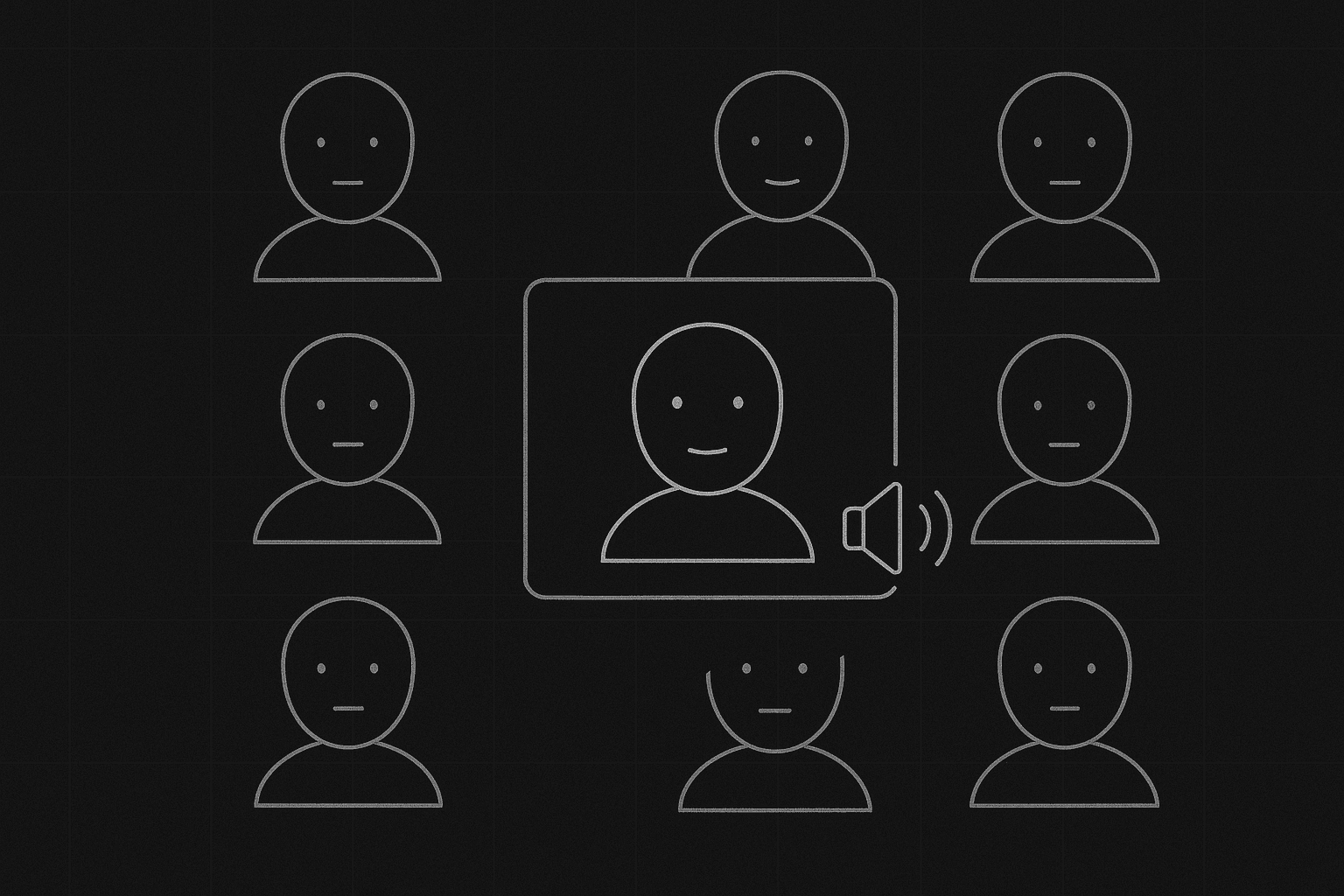
They're on a call. Six faces in a grid. Or one face full frame. Or we cut between them. Video conferences (Zoom, Teams, Meet) are part of work and life, and of scripts. The challenge is to put who we see, who is speaking, and what we see on screen (gallery, speaker view, share screen) on the page without confusing the reader. Here's how to format video calls and gallery views clearly.
The reader needs to know who's talking and when we're looking at whom. The rest is convention.
Think about it this way. In the room we see a grid or a single speaker. We hear voices, sometimes with a slight delay or a label ("Sarah (muted)"). On the page you're not building the app, you're identifying the participants, the view (gallery vs. speaker vs. shared screen), and the dialogue. Our guide on phone calls covers two-location calls; a Zoom call is multi-location, often multi-voice, with a shared visual space (the grid). This piece is about that. For intercutting in general, see intercutting.
What to Establish Up Front
Who is on the call: List the participants (by character name or role). View: Are we in gallery (everyone visible), speaker view (whoever talks is big), or one character's POV (we see their screen)? Where our POV is: Are we "in" one character's room, or are we floating in the call itself? Once you've set that, dialogue can be tagged by character and you can cut to "Speaker view: SARAH" or "Gallery: everyone visible" when the view changes. For scene headings and clarity, see screenplay format.
Formatting the Open of the Call
Option A: Scene heading + view. "INT. ZOOM CALL - DAY" or "VIDEO CONFERENCE - DAY." Then an action line: "Gallery view. Six faces: SARAH, MIKE, JENNA, DAVE, LOUISE, and TOM." Option B: Character POV. "INT. SARAH'S HOME OFFICE - DAY. She's on a Zoom call. On her screen: gallery view. MIKE, JENNA, DAVE, LOUISE, TOM." We're with Sarah; we see her screen. Use one approach and stick to it. For POV and subtext, see subtext.
Formatting Dialogue in the Call
Who is speaking: Use character names. If we need to clarify that they're on the call, you can use (ON VIDEO) or (V.O.) depending on your convention. Muted / tech: If someone is muted and we see them try to talk, or if there's a lag, put it in action: "Mike's mouth moves. Muted. He fumbles for the button." Interruptions: Same as in person, dialogue and action. For dual dialogue when two people talk over each other on the call, see dual dialogue.
Switching Views (Speaker View, Share Screen)
When the view changes, say so. "Speaker view: Sarah." Then her dialogue. "Speaker view: Mike." Then his. Or "Share screen: Mike's presentation. A chart fills the frame." The reader and the director need to know when we're not in gallery. For visual clarity, see chyrons, you can use a super for "SARAH - NEW YORK" if locations matter.
Relatable Scenario: The Tense Meeting
Six people. One is about to be fired. Format: Establish the call (gallery or one POV). Tag dialogue by name. When the key moment comes, you might switch to speaker view for the person delivering the blow or the person reacting. For subtext in conflict, see subtext.
Relatable Scenario: The Character Who Drops Off
Someone's connection fails. Or they leave the call. Format: Action line. "Dave's frame freezes. Then: 'Dave left the meeting.'" Or "Sarah's screen goes black. She's dropped." For tension and pacing, see micro-pacing.
The Trench Warfare Section: What Beginners Get Wrong
Not naming who's on the call. "Several people are on a Zoom." Fix: List the participants so we can track who speaks. For ensemble clarity, see distinct voices.
Unclear who we're looking at. Dialogue without view. Fix: Establish view (gallery vs. speaker) and, when it changes, say so. "Speaker view: Mike."
Over-describing the UI. "The mute button, the reaction icons..." Fix: Only include story-relevant tech (muted, dropped, share screen). For format and economy, see screenplay format.
Treating it like a stage play. Everyone speaks in order, no overlap. Fix: Allow interruptions, muted moments, lag. Video calls have their own rhythm. For overlapping dialogue, see dual dialogue.
Forgetting the single POV option. We're always in "the call." Fix: Consider one character's POV, we see their face and their screen. That can simplify and add subtext (what they do when they're on mute). For POV, see unreliable narrator.
Try it free
Try Screenweaver for free on your script
It is free. Import your existing project, get a clearer view of your outline, and regain control of your story structure in minutes.
Start FreeVideo Call Format: Essentials
| Element | Include |
|---|---|
| Participants | List by name (or role) |
| View | Gallery, speaker, or POV screen |
| Dialogue | Character name; (ON VIDEO) or (V.O.) if needed |
| View changes | "Speaker view: X." "Share screen: Y." |
| Tech beats | Muted, dropped, lag, when they matter |
Step-by-Step: Formatting a Zoom Scene
First: List who's on the call. Second: Choose view (gallery, speaker, or one character's screen). Third: Open with a scene heading and an action line that establishes view and participants. Fourth: Write dialogue with clear speaker tags. Fifth: When the view changes, add an action line. Sixth: Add tech (muted, dropped) only when it affects the story. For more on multi-character scenes, see ensemble and phone calls.
[YOUTUBE VIDEO: Same meeting as in-person vs. on Zoom, format and tone comparison.]
The Perspective
Format video calls by establishing participants and view, tagging dialogue clearly, and noting when the view changes (speaker, share screen). Don't over-describe the UI. Do make it clear who we see and who's speaking. When the reader can follow the call, the format works. So list the participants. Set the view. And tag the lines.
Final Step
Build your next script with Screenweaver
Move from ideas to production-ready pages faster with timeline-native writing and AI-assisted story flow.
Try Screenweaver