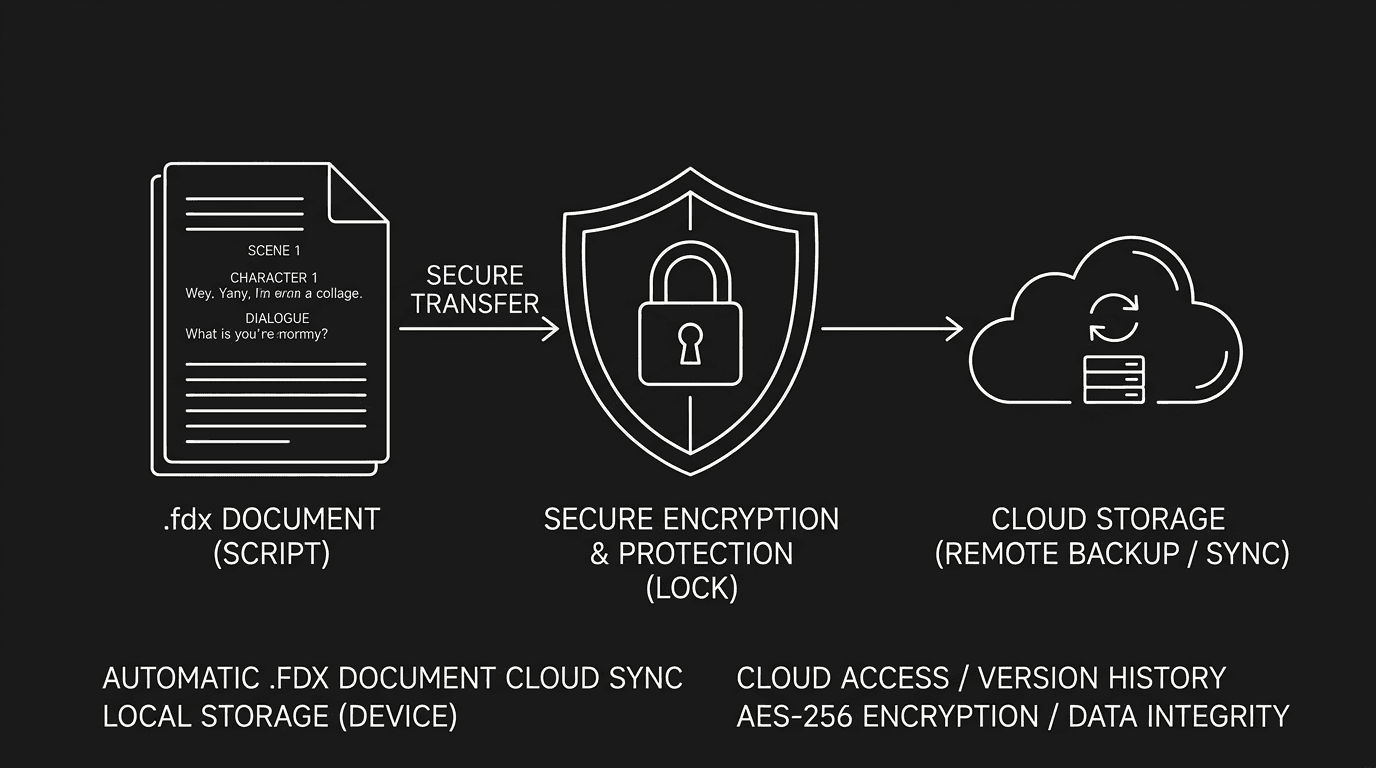

Prompt: Dark Mode Technical Sketch, A single .fdx document icon on one side and a cloud symbol on the other; a shield or lock in the center suggesting protection; clean thin white lines on solid black; no 3D renders --ar 16:9
Your script exists in two forms: the thing you're editing (usually in an app) and the files that persist when the app is closed. Those files might live on your laptop, in a cloud folder, or inside a vendor's ecosystem where you're not sure you can get them out. The question isn't "Is cloud safe?" or "Are .fdx files safe?", it's where and in what format you keep copies so that you never have a single point of failure. In 2026 the safest way to protect your script is to own at least one copy in a standard, portable format (PDF or .fdx) in a place you control, and to add cloud or a second location as backup, not as the only place your work exists. This guide walks through the trade-offs, the failure modes, and the habits that actually keep your script safe.
.fdx is Final Draft's native format. It's also an open XML-based format that many other apps can read and write. That makes it portable: you can open it in Fade In, WriterSolo, or another FDX-capable tool if Final Draft disappears or your license lapses. PDF is even more universal, everyone can read it, no app required. The cloud is whatever your app or your storage provider uses: sync folders (Dropbox, iCloud, OneDrive), or the app's own servers (Celtx, Arc Studio, Final Draft Cloud, etc.). Each has risks. Local-only: you lose the machine or the drive, you lose the file. Cloud-only: you lose access to the account, the vendor changes terms, or the sync breaks and you didn't notice. The safest approach is both: local copies in standard formats plus a second copy somewhere else, cloud or another device, so that no single event can wipe you out. For how to recover when a single .fdx goes bad, see our guide on recovering a corrupted .fdx. Think of it this way: the best protection is redundancy. One format (PDF or .fdx), two locations. Once that's a habit, you stop worrying about where the script "really" lives, you know you have it in more than one place.
Why Format Matters More Than Where (At First)
Before you worry about cloud vs. local, worry about what you're saving. If your script only exists inside a proprietary cloud project (e.g. "My Script" in App X with no export), you don't own a file. You own access. If the app goes away or your account is locked, you may have no way to get your work out. So the first rule is: you must be able to export to at least one standard format, PDF or .fdx, and you must do it regularly. Once you have that file, you can put it anywhere: local drive, USB, cloud folder, second computer. The format is what makes it portable. The location is where you store the copy. For production handoff and what studios expect, see exporting for production. For format rules so your export looks correct, see screenplay formatting.
The safest script is one that exists as a file you can open without the app that created it. PDF and .fdx both qualify. A "project" that only lives in one vendor's cloud does not.
Relatable Scenario: The Writer Who Lost Everything to "Cloud Only"
Taylor kept their script only in a cloud-based screenwriting app. They didn't export. They assumed the app was their backup. When the app had an outage, they couldn't open the project. When they tried to export later, the export failed for one script, corrupted or stuck. Support took days to respond. Taylor had no local copy. They learned the hard way: cloud is not backup if it's the only copy. The fix is to export PDF and .fdx (when possible) on a schedule, end of every session or at least weekly, and store those exports in a second place: a folder on your machine that syncs to Dropbox or iCloud, or a separate cloud drive. Then if the app fails, you still have files. For a full recovery workflow when a single file goes bad, see recovering a corrupted .fdx.
Relatable Scenario: The Writer Who Lost the Laptop
Jordan had all their scripts on one laptop. No cloud sync, no external backup. The laptop was stolen. They had nothing. Local-only is safe from vendor lock-in and account issues, but it's one hardware failure or one theft away from total loss. Fix: Keep local copies, but also copy them somewhere else. That can be a cloud folder (Dropbox, OneDrive, iCloud, Google Drive), an external drive you update weekly, or both. The goal is that no single event, lost device, dead drive, corrupted app, destroys the only copy. Our comparison of screenwriting tools includes notes on which apps support local + export and which are cloud-first; that affects how easily you can maintain a second copy.
Relatable Scenario: The Writer Who Isn't Sure Where the "Real" File Is
Sam writes in an app that syncs to the cloud. They have no idea if the "real" script is on their machine or on the server. If they go offline, can they still open it? If they cancel the subscription, do they get to keep the file? That confusion is common. Fix: Create a habit: when you finish a session (or once a week), export the script to PDF and .fdx and save those files into a folder you control, e.g. Documents/ScriptBackups or a dedicated project folder that syncs to your preferred cloud. That folder is your "source of truth" for backups. The app's project is where you edit; the exported files are what you own. Name them clearly (e.g. ProjectName_2026-03-06.fdx) so you know what and when.
Local vs. Cloud vs. Hybrid: What to Choose
| Approach | Pros | Cons | Safest? |
|---|---|---|---|
| Local only | You control the file; no vendor; works offline | One device/drive failure = total loss | No |
| Cloud only (app's cloud) | Access from anywhere; app handles sync | Vendor lock-in; export may be limited; outage = no access | No |
| Cloud only (your sync folder) | You control the folder; standard files | Sync can conflict; need to export into it regularly | Better, but still one account |
| Hybrid: local + second location | Local copy + export to cloud or second drive; two places | Requires discipline to export and sync | Yes |
The safest pattern in 2026: Edit in your app (local or cloud). Export to PDF and .fdx on a schedule. Store those exports in a local folder that syncs to a cloud service you trust (or copy to an external drive), and keep at least one copy off the machine you write on. That way you're not dependent on a single app, a single account, or a single device. For more on why owning your files matters, see screenwriting software and subscription cost. Two formats, two places: that's the formula.
The Trench Warfare: What Writers Get Wrong
Relying on the app's autosave as "backup." Autosave prevents loss while the app is open. It does not create a separate copy you can open elsewhere. If the project file corrupts or the app's cloud has a bug, autosave may have written the same bad data. Fix: Export to PDF and .fdx regularly into a folder you control. That folder is your backup; the app is where you work.
Keeping only one copy in one place. One file on one drive, or one project in one cloud, is one point of failure. Fix: Two copies minimum. One can be local; one can be cloud or another drive. Both should be standard format (PDF/.fdx) so you can open them with any compatible tool.
Assuming "cloud" means "safe." Cloud can fail, outage, account lock, vendor discontinuing a product, or sync conflict that overwrites good data with bad. Fix: Treat cloud as one copy, not the only copy. Have a second copy elsewhere (local or a second cloud). And export from your app into a sync folder you control; don't assume the app's own cloud is enough.
Never testing restore. You've been exporting for months. Have you ever opened one of those exports on another machine or in another app? Fix: Once in a while, open a backup .fdx or PDF in a different app (or on a different device). Confirm it looks right. If it doesn't, fix your export or backup habit before you need it for real.
Storing only in the app's proprietary cloud. If the script only exists as "Project X" inside App Y and you can't export or don't, you don't own a file. You own access. Fix: Ensure the app allows export to PDF and/or .fdx. Export at least weekly. Store those files in a folder that syncs or backs up separately. For migration tactics when leaving an app, see migrating from Celtx, the same principle applies to any tool. The day you decide to leave that app, you want to already have a folder full of exports. If you don't, you're at the mercy of the vendor's export feature and your ability to log in.
Try it free
Try Screenweaver for free on your script
It is free. Import your existing project, get a clearer view of your outline, and regain control of your story structure in minutes.
Start FreeStep-by-Step: Setting Up a Safe Backup Routine
Step 1 – Choose your "backup" folder. Create a folder on your machine that will hold exported scripts. Examples: Documents/ScriptBackups or Documents/Projects/[ProjectName]/Exports. Put every exported PDF and .fdx here. Use a naming convention: ProjectName_YYYY-MM-DD.pdf and ProjectName_YYYY-MM-DD.fdx so you know what and when.
Step 2 – Enable sync or a second copy. Either (a) put that folder inside a cloud-synced folder (Dropbox, iCloud Drive, OneDrive, Google Drive), or (b) copy the folder to an external drive or second computer on a schedule. The goal: if your main machine disappears, the backup folder exists somewhere else. Let sync complete before you disconnect or shut down.
Step 3 – Export from your app on a schedule. After every writing session, or at least once a week, export the script to PDF and .fdx (if your app supports it) and save into the backup folder. If you have multiple projects, export all of them. This becomes part of "done for the day", save in the app, then export to backup.
Step 4 – Verify once. Open one of the backup .fdx files in another app (e.g. Fade In, or a free FDX viewer). Open the PDF in a reader. Confirm formatting and content look correct. If something's wrong, fix your export settings or app workflow. Then you can trust the routine.
Step 5 – Keep the app's own backup if it has one. Final Draft and others can save backup copies when you save. Enable that and note where those backups go. They're a second line of defense, but they're still in the app's format and location. Your exported PDF/.fdx in your backup folder are the copies that are portable and vendor-independent. For recovery when the main .fdx corrupts, see recovering a corrupted .fdx. Once this routine is in place, a single crash or a single lost device is an inconvenience, not a catastrophe.
.fdx Specifically: What It Is and Why It Helps
.fdx is an open format. Under the hood it's a ZIP file containing XML. That means many apps can read and write it, not just Final Draft. So when you save or export to .fdx, you're creating a file that can be opened elsewhere. That's portability. It's also editable: you can continue working in another FDX-capable app if you switch tools or if Final Draft isn't available. PDF is read-only for editing but universal for reading and for submission; .fdx is the format to keep if you want to preserve editability and structure. Some writers keep both: PDF for sharing and archiving, .fdx for future edits. For production and what to deliver to a studio, see exporting for production. For a full round-up of tools that support .fdx, see screenwriting software alternatives.
The Perspective
The safest way to protect your script in 2026 is to own copies in standard formats and keep them in more than one place. .fdx and PDF are the formats that survive app changes and account issues. The cloud is useful as one of those places, sync your backup folder, or use an app that stores projects in the cloud, but it should never be the only place. Export regularly. Put those exports in a folder that syncs or that you copy to a second device. Then you're protected against a single drive failure, a single app failure, and a single account failure. Your script is yours. Keep it that way. No single tactic is perfect; the combination of format plus location is what makes the difference.
For more on recovering when a single file goes wrong, see Final Draft crash and .fdx recovery. For how to hand off to production, see exporting for production. For industry context on scripts and rights, the WGA{rel="nofollow"} offers resources for writers.
[YOUTUBE VIDEO: Screen recording: writer exports script to PDF and .fdx from their app, saves into a backup folder that syncs to cloud, then opens the .fdx in a second app to verify, voiceover explaining the routine.]
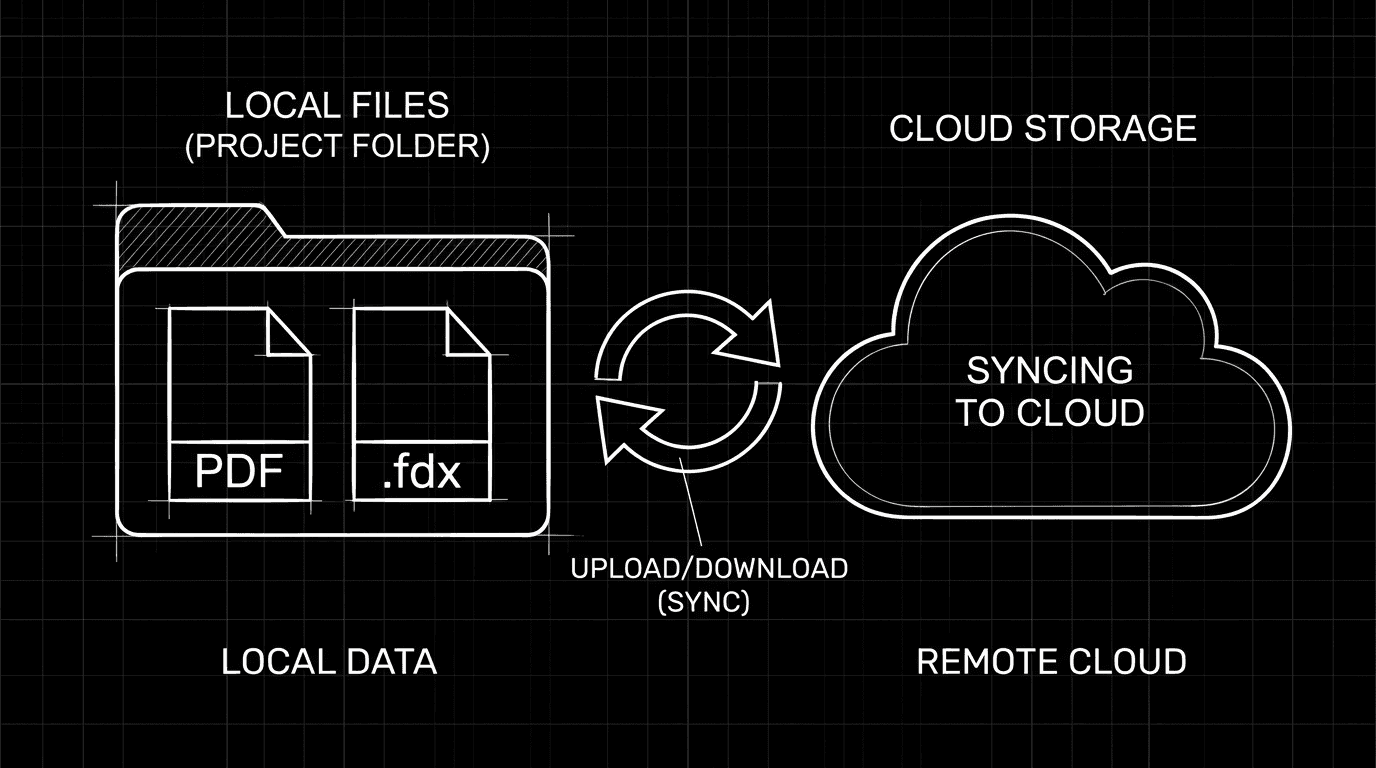
Prompt: Dark Mode Technical Sketch, A folder containing PDF and .fdx icons; an arrow or sync symbol pointing to a cloud; thin white lines on solid black; no 3D renders --ar 16:9
When Cloud-Only Is Acceptable (And When It Isn't)
Cloud-only can be acceptable if (1) you export regularly to PDF/.fdx and store those exports in a second location you control, or (2) you're in a short-term workflow where the project will be exported and archived at the end. It's not acceptable as a long-term strategy if the script only lives inside the app's cloud and you never export. The moment you have a "final" or "milestone" draft, export it and put the file somewhere that doesn't depend on that app. That way "cloud-only" is really "cloud for editing, plus exported files elsewhere." The script is protected. For tools that emphasize cloud collaboration, see cloud collaboration and real-time co-writing. The rule of thumb: if you couldn't open your script tomorrow without that app and that account, you're not safe yet. Fix that before something goes wrong.
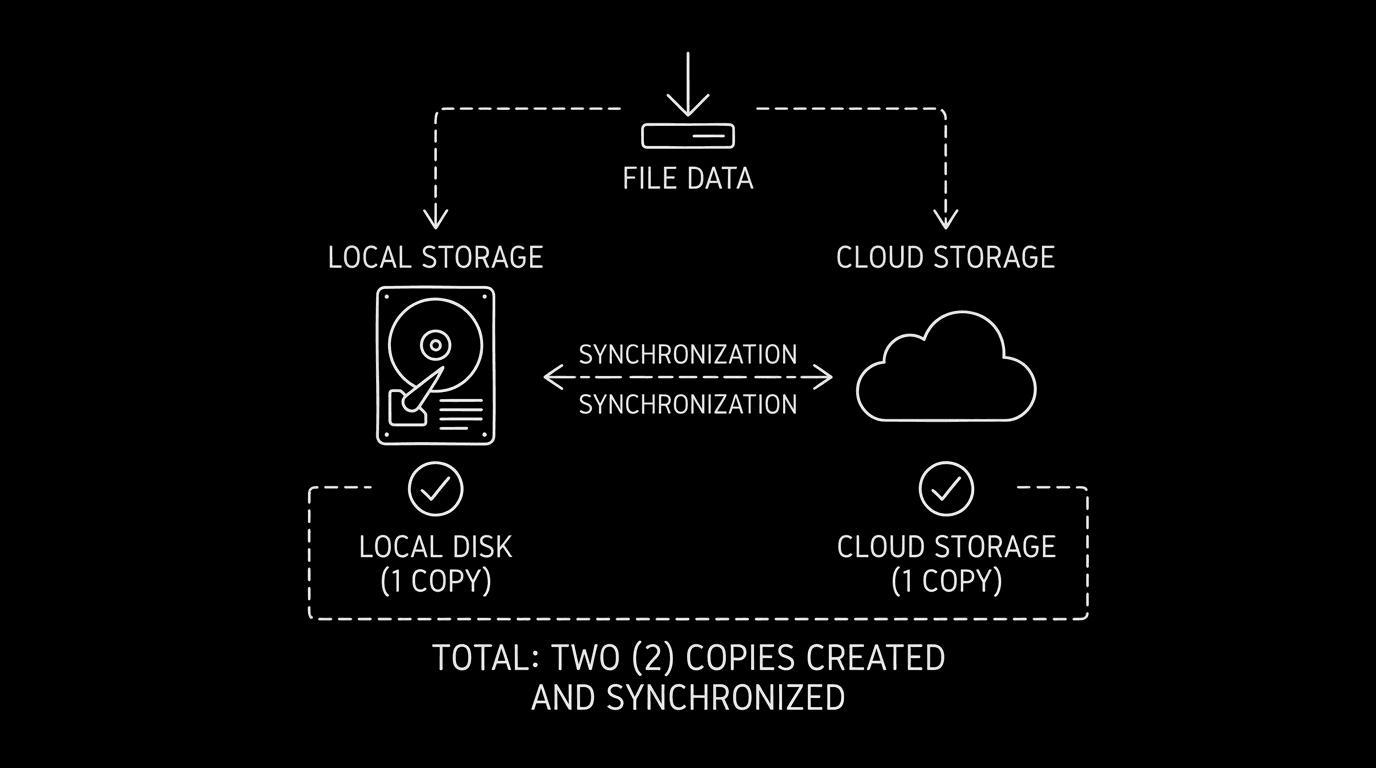
Prompt: Dark Mode Technical Sketch, Two storage locations, local disk icon and cloud, each with a checkmark; "two copies" implied; thin white lines on solid black; no 3D renders --ar 16:9
Final Step
Build your next script with Screenweaver
Move from ideas to production-ready pages faster with timeline-native writing and AI-assisted story flow.
Try Screenweaver