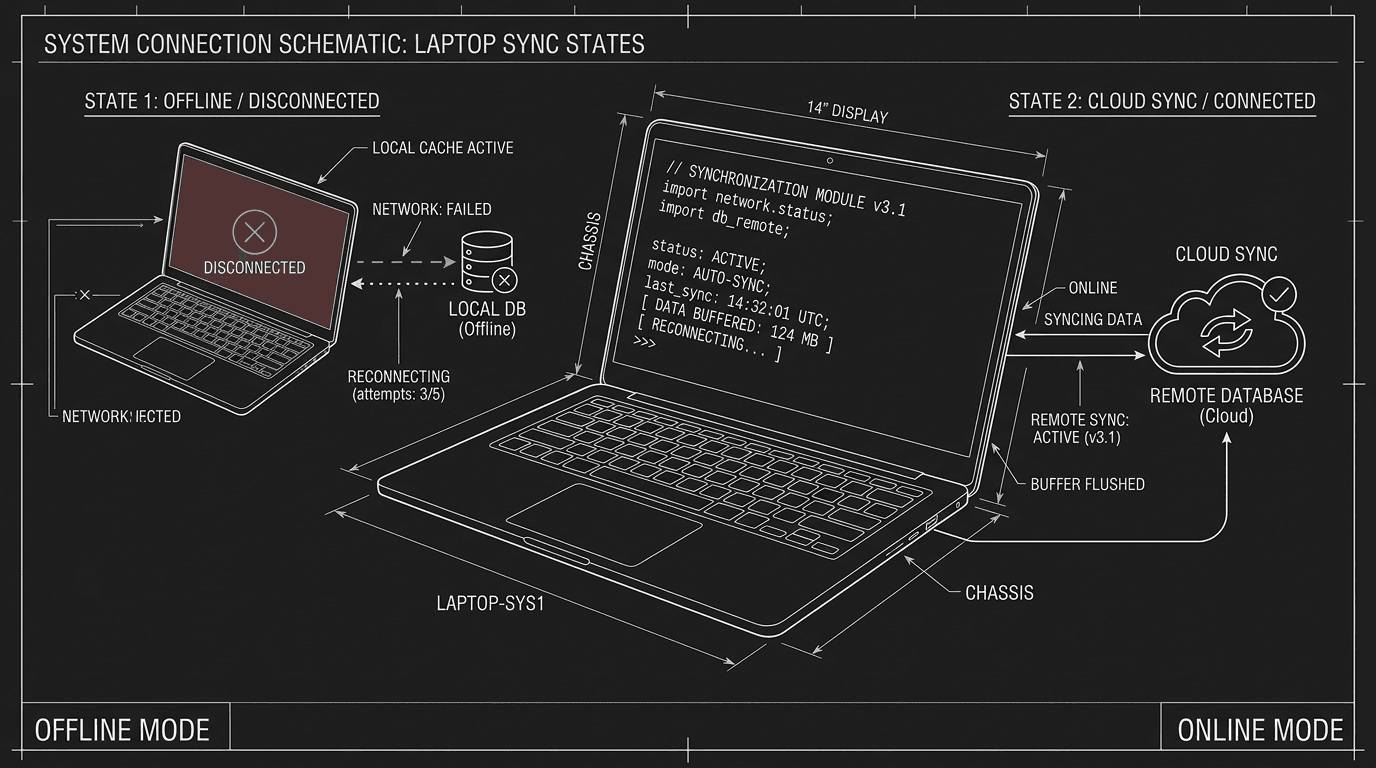

Prompt: Dark Mode Technical Sketch, A laptop with script on screen; on one side a "disconnected" or offline state; on the other a cloud or sync symbol; thin white lines on solid black; no 3D renders --ar 16:9
You're on a plane. Or in a café with WiFi that drops every ten minutes. Or in a rental with no internet at all. You want to write. The question isn't just "Which screenwriting app is best?", it's whether the app will work when you're off the grid. Offline vs. online isn't a philosophical choice. It's a practical one. When you're writing on the go, the wrong choice means you're stuck: either you can't open your script without a connection, or you can't sync when you're back online and you're left with two versions of the same file. This guide walks through what to look for, when to prefer offline, when to prefer online, and how to get the best of both so that "on the go" doesn't mean "out of luck."
Offline-capable software runs on your machine. It stores the script locally. You can open it, edit it, and save it without any internet. When you have a connection, it may sync to the cloud or to another device, but the core workflow doesn't depend on the network. Online (or cloud-first) software runs in the browser or in an app that expects to talk to a server. Your script lives in the cloud. You need a connection to open it, save it, or sometimes even to start the app. Hybrid tools offer both: a local mode that works offline and a sync layer that updates when you're online. The catch is that not every product is clearly one or the other. Some "desktop" apps now require a login or a periodic check-in; some "cloud" apps cache a copy locally for a while. So the only way to know is to test: disconnect and try to open and save. For a full comparison of how different apps handle sync and collaboration, see our cloud collaboration and real-time co-writing guide. For protecting your script regardless of where it lives, see .fdx files and the cloud.
When you're on the go, the best tool is the one that lets you write when you have no connection, and that syncs cleanly when you do. Everything else is a compromise.
Relatable Scenario: The Writer on a Long Flight
Morgan has a six-hour flight. They want to work on the second act. They open their usual screenwriting app, the one they use at home. It won't load. The app is cloud-first; it needs to authenticate or fetch the project from the server. In the air there's no WiFi, or it's paid and flaky. Morgan has nothing to do but wait. They could have exported the script to a local file or switched to an offline-capable app before the trip, but they didn't think about it until they were already in the seat. Fix: If you travel, know whether your app works offline. If it doesn't, export the script to .fdx or PDF before you leave and open it in an app that runs locally (e.g. Final Draft, Fade In, or a reader). When you land, re-import or merge. For backup and export discipline, see protecting your script. For mobile capture when you're not at a laptop, see formatting on the go.
Relatable Scenario: The Writer in a Café With Spotty WiFi
Jordan sets up in a café. The WiFi is slow and drops every few minutes. They're using a cloud-based screenwriting app. Every time the connection goes, the app freezes, shows "Reconnecting," or fails to save. Jordan loses a line. They have to wait for the connection to come back before they can continue. The experience is miserable. Fix: Prefer an app that caches the script locally and syncs when the connection is stable. Or write in an offline-capable app and sync at the end of the session when you're on better WiFi. The goal is to never have "save" depend on a flickering connection. For how different tools handle latency and sync, see cloud collaboration.
Relatable Scenario: The Writer Who Needs to Hand Off to a Co-Writer Tomorrow
Sam is traveling. Their co-writer is at home. They need to pass the script back and forth. If Sam uses a purely offline app, they have to remember to export and send the file (email, shared drive, etc.) when they have connection. If they use a cloud app that syncs, the co-writer can open the same project and see updates when Sam saves. The tradeoff: Sam must have connection to save to the cloud. So the choice depends on how often they'll have internet. If they'll have WiFi at the hotel at the end of the day, a sync-when-online workflow can work. If they'll be off the grid for days, they need to export and send the file manually, and then merge or replace when they're back. For real-time co-writing comparison, see cloud collaboration and best screenwriting software alternatives.
Offline vs. Online vs. Hybrid: What to Choose
| Approach | Works without internet? | Sync/collaboration | Best when you're on the go… |
|---|---|---|---|
| Offline-only (e.g. desktop Final Draft, Fade In, no cloud) | Yes | Manual: export file, send to others | You're often without connection; you're fine sending files when you have WiFi |
| Online-only (browser or cloud-first app) | No | Automatic when connected | You're always or usually online; you want access from any device |
| Hybrid (local app + optional sync) | Yes, for local copy | Syncs when connected; works offline when not | You want to write anywhere and sync when you can |
The safest bet for writing on the go is hybrid: an app that stores a local copy and syncs when you're online. That way you're never blocked by no connection, and you're not stuck with manual file handoffs when you do have connection. Not every app offers that. Some are desktop-only and offline; some are cloud-only. Check before you depend on it for a trip. For a round-up of tools and their sync/offline behavior, see best screenwriting software alternatives.
When Offline-Only Makes Sense
You write mostly at one desk. You take an occasional trip. You don't need real-time collaboration, you're fine exporting and sending the file when you have WiFi. In that case, an offline-only app (e.g. Final Draft or Fade In on desktop, with no cloud dependency) is enough. You export before you travel, work on the local file on the road, and replace or merge when you're back. The workflow is manual but simple. You're not paying for sync you don't need, and you're never at the mercy of a server. For backup and export habits, see .fdx and cloud.
When Online-Only Is Acceptable
You're almost always connected. You work from home, a co-working space, or cafés with reliable WiFi. You want to open the same script from your laptop and your tablet. You don't take long flights or go to places with no internet. In that case, a cloud-first app can work. The risk is the rare moment when you're offline and need to write, so keep an exported .fdx or PDF in a sync folder as insurance. If the cloud app goes down or you lose connection, you still have a copy. For real-time collaboration and which apps are cloud-first, see cloud collaboration.
The Trench Warfare: What Writers Get Wrong
Assuming "online" means "I can work from anywhere." It means you can work from anywhere that has internet. If you're on a plane, in a dead zone, or in a place with unreliable WiFi, "anywhere" stops at the connection. Fix: Know your travel pattern. If you'll be offline often, choose an app that works offline or that caches locally and syncs later. If you're almost always online, cloud-first can be fine.
Not testing offline before a trip. You assume your app will work. You don't turn off WiFi and try to open the project until you're already in the air. Fix: Before a trip, disconnect from the internet (or enable airplane mode) and open your script. Can you open it? Edit it? Save it? If not, export to .fdx or PDF and have a plan for where you'll work offline. For backup and export, see .fdx and cloud.
Forgetting to sync when you're back online. You wrote for three days offline. You have a local file full of changes. You get home and open the cloud version, which doesn't have your changes. Now you have two versions and a merge problem. Fix: As soon as you have a stable connection, sync or export. If the app doesn't auto-sync when it reconnects, manually upload or replace the cloud copy. Make "sync when I'm back online" part of your trip routine.
Relying on a single device. You have the script on your laptop. The laptop is in your bag; you're in a queue with your phone. If the app is only on the laptop and doesn't sync to the phone, you can't even read the script. Fix: If you care about access on the go, use an app that syncs across devices or at least lets you export to a format you can open on your phone (e.g. PDF). For mobile capture, see formatting on the go.
Choosing by feature list instead of by your actual on-the-go pattern. The "best" app on paper may be cloud-only. If you're often offline, it's the wrong fit. Fix: List where you actually write: desk, café, train, plane, hotel, no WiFi for days. Then check whether your app (or the one you're considering) works in those conditions. Match the tool to the pattern. A single "where do I write when I'm not at home?" answer will tell you whether offline, online, or hybrid is non-negotiable.
Try it free
Try Screenweaver for free on your script
It is free. Import your existing project, get a clearer view of your outline, and regain control of your story structure in minutes.
Start FreeHow to Get the Best of Both: A Practical Workflow
If your main app is offline-only (e.g. Final Draft on desktop): Export the script to .fdx (and optionally PDF) before you leave. Put the file in a folder that syncs to the cloud (Dropbox, iCloud, OneDrive) or on a USB drive. When you're on the go, open the .fdx in the same app on your laptop, it's local, so it works offline. When you have connection, copy the updated file back to your sync folder or replace the cloud copy. When you're home, open from the sync folder so you have the latest. You're manually "syncing," but you're never blocked by no connection. For export and backup discipline, see .fdx and cloud.
If your main app is cloud-first: Check if it has an offline mode or a desktop app that caches the project. If yes, use it, and test it before you travel. If no, export the script to .fdx or PDF before you go and work in a local app or reader while you're away. When you're back online, you'll need to re-import or merge. It's not ideal, but it's better than not writing. For tools that offer both local and cloud, see best screenwriting software alternatives.
If your app is hybrid: Use it. Write locally when you're offline; let it sync when you're online. Before a long trip, confirm that the local copy is up to date (sync once while you have connection). When you're back, sync again so the cloud has your latest. You get offline capability and automatic sync when it's available. For collaboration and sync behavior, see cloud collaboration.
Step-by-Step: Deciding for Your On-the-Go Pattern
Step 1 – List where you write. Desk only? Café? Train? Plane? Hotel with bad WiFi? Remote location with no connection for days? Be honest. The answer drives everything.
Step 2 – Check your current app. Does it work offline? Can you open and save the project without internet? If you're not sure, disconnect and try. If it doesn't work offline, you need an export-and-local workflow for travel or a different app. For a comparison of app types, see screenwriting software alternatives.
Step 3 – Establish a pre-trip routine. Before any trip where you might write, export the script to .fdx (and PDF if you want a read-only backup). Put the file in a sync folder or on the device you're taking. If your app is hybrid, sync once so the local copy is current. That way you're never leaving without a usable file. For backup habits, see .fdx and cloud.
Step 4 – Establish a post-trip routine. When you're back online, sync or upload your changes. If you worked in a local file, replace or merge into your main project. Don't leave two versions floating. For version discipline, see recovering a corrupted .fdx, same idea: know where the canonical copy is.
Step 5 – Re-evaluate if your pattern changes. If you start traveling more, or co-writing more, or working from more places, your offline/online needs may shift. Revisit the choice once a year or when your routine clearly changes. For a full round-up of tools and their sync/offline behavior, see best screenwriting software alternatives. The goal is simple: never be in a situation where you want to write and the tool says no. Offline vs. online is just the lever you pull to make that true.
[YOUTUBE VIDEO: Screen recording: writer disconnects WiFi, opens script in offline-capable app, makes edits, reconnects, and shows sync or export step, voiceover explaining offline vs. online and when each matters.]
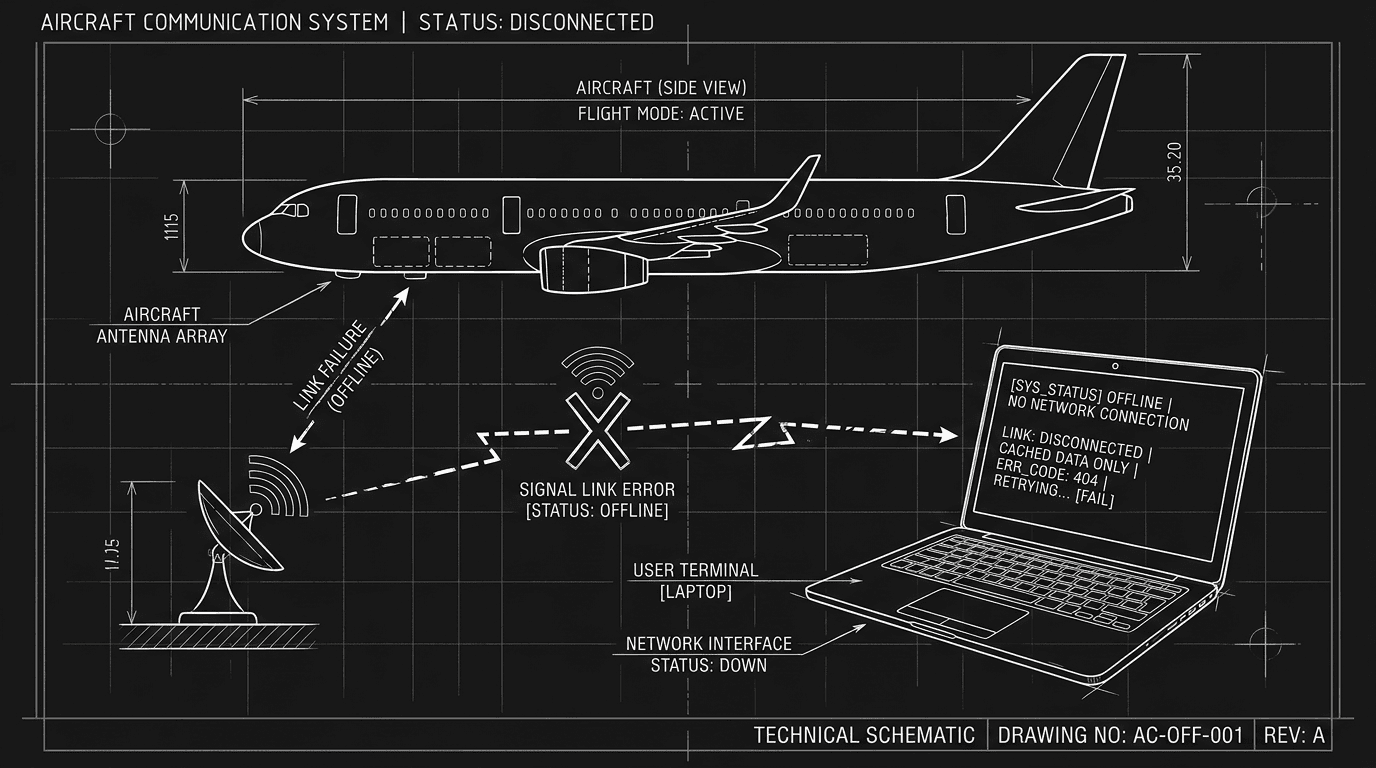
Prompt: Dark Mode Technical Sketch, A plane silhouette and a laptop with script; "offline" or "no connection" implied; thin white lines on solid black; no 3D renders --ar 16:9
The Perspective
Offline vs. online isn't about which is "better." It's about where you write and how often you're connected. When you're on the go, the worst outcome is wanting to write and not being able to, because the app needs the internet. So choose an app that works when you're offline, or build a workflow that gives you a local file before you leave. Sync when you can; don't depend on sync when you can't. Your script should be with you. The connection is optional. Hybrid is the sweet spot for most writers who move around: local when it matters, synced when it's possible. For more on protecting that script across formats and locations, see .fdx files and the cloud. For mobile capture and sync, see formatting on the go.
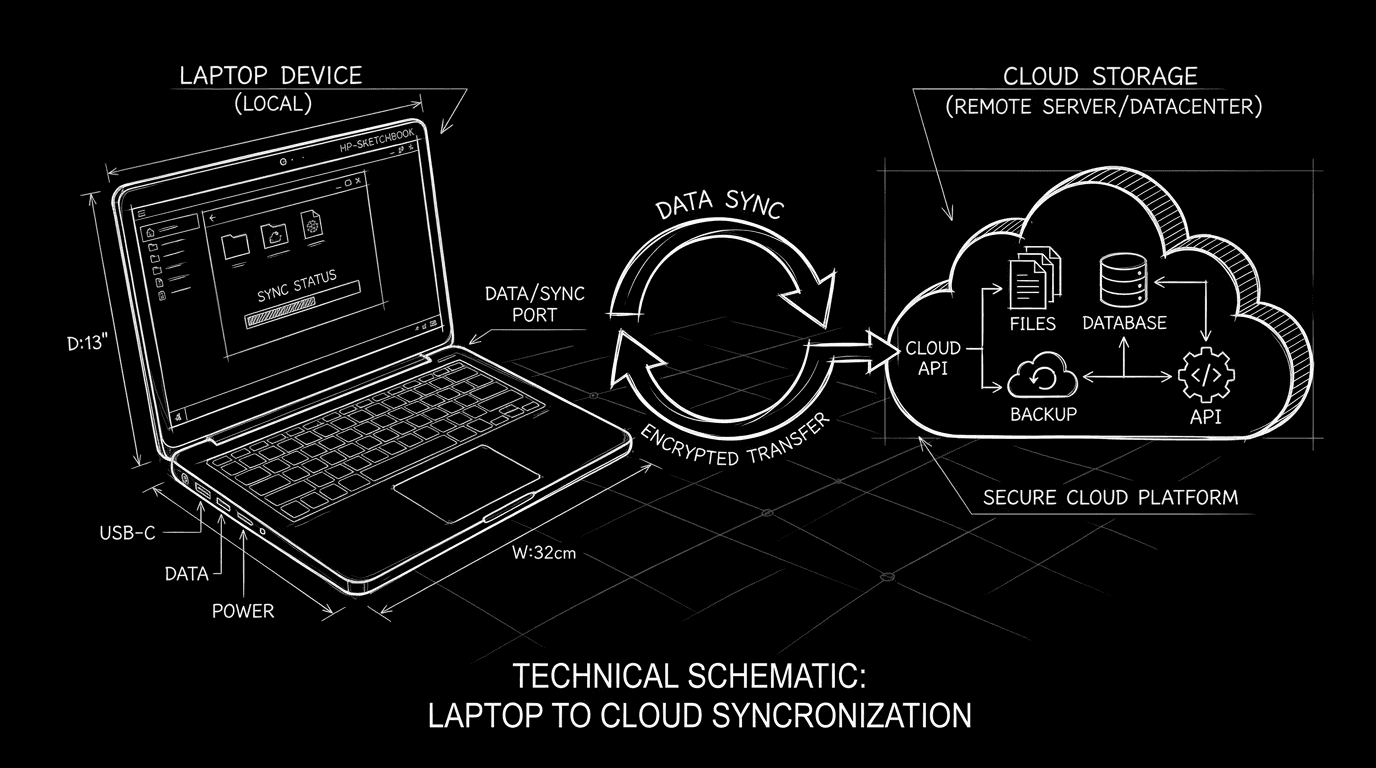
Prompt: Dark Mode Technical Sketch, A laptop and a cloud with a sync arrow between them; "when connected" implied; thin white lines on solid black; no 3D renders --ar 16:9
Final Step
Build your next script with Screenweaver
Move from ideas to production-ready pages faster with timeline-native writing and AI-assisted story flow.
Try Screenweaver