
Navigating Scene Trees: The Art of Finding a Specific Sequence in One Click
You need the dinner scene. You know it's in Act Two. You scroll. And scroll. Page 47? 52? You search "dinner" and get six results. You click the wrong one. You scroll again.
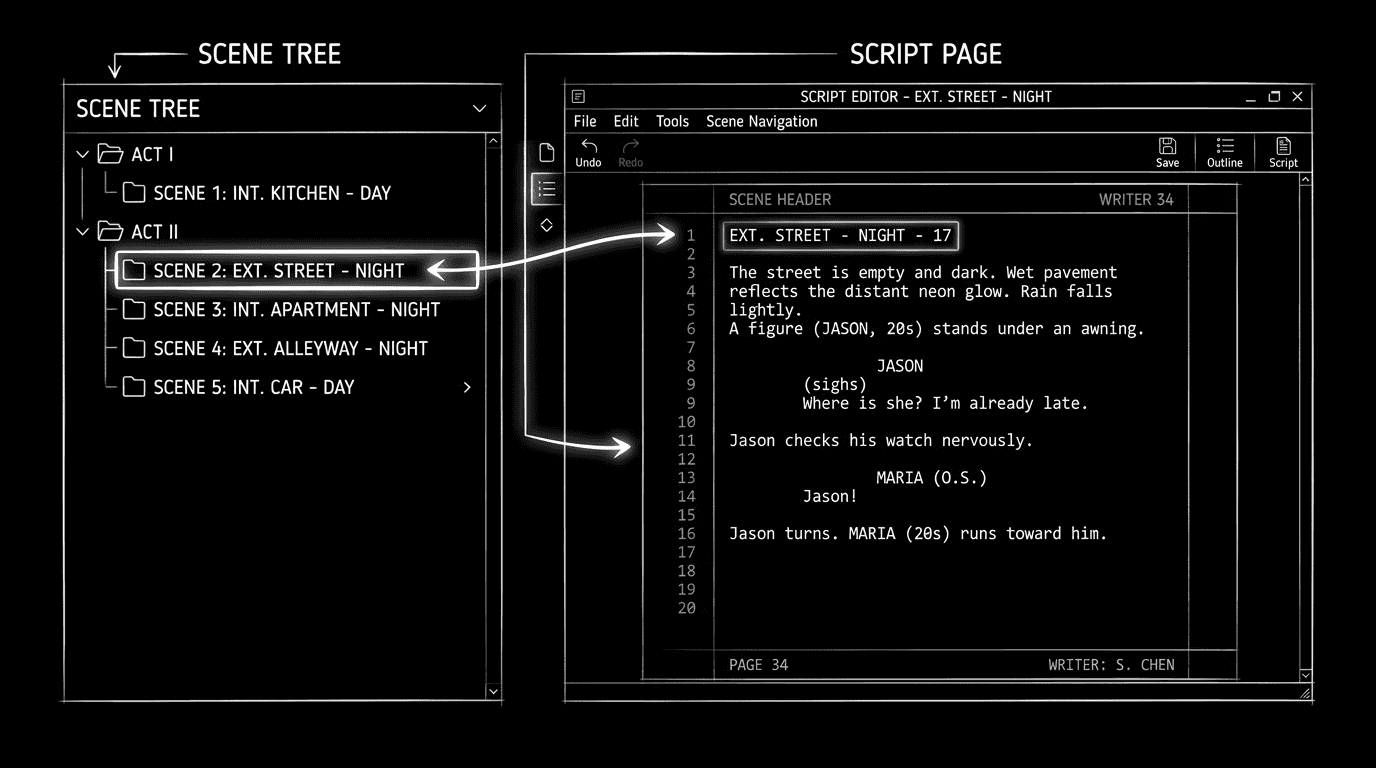
Scene tree navigation is a list of every scene heading in order. Click one, you jump straight to that scene. No scrolling, no guessing. One click from "where's the dinner?" to the dinner.
Why Scene Trees Matter
Scripts are long. Scenes are the natural chunks. When you can see all scene headings in one list and click to land in that scene, you're no longer "searching" the script, you're browsing it. That speeds up rewrites, punch-up, and production prep. The script supervisor and editor think in scenes; so should your tool.
A scene tree turns "page 47" into "INT. RESTAURANT – NIGHT." You navigate by story, not by scroll position.
What a Scene Tree Needs
A list of scene headings in story order. INT. KITCHEN – DAY, EXT. STREET – NIGHT, etc. Optional: page number or duration beside each.
Click = jump. Select a scene in the list; the script view scrolls or jumps so that scene is in view and the cursor is at the top of it (or in a sensible place). No separate "go to page" dialog.
Always visible or one click away. Ideally the scene tree is in a sidebar or panel so you can glance and click. If it's in a menu or overlay, it should open fast, "Scene list" or "Navigate to scene", and close after you pick.
Optional: nesting. Some tools group scenes by act or sequence. That's nice but not required. The baseline is a flat, ordered list of headings that jump.
Tools like ScreenWeaver expose scenes in the Living Story Map; the timeline or scene list is the scene tree. Our beat board without leaving the app and what ScreenWeaver is describe how structure and script stay linked. Even if your app doesn't have a fancy tree, you can approximate with a doc outline or a second window listing scene slugs, then use Find to jump. Not as smooth, but better than blind scrolling.
Try it free
Try Screenweaver for free on your script
It is free. Import your existing project, get a clearer view of your outline, and regain control of your story structure in minutes.
Start FreeScenario: Punch-Up Without the Scroll
You're doing a pass to sharpen dialogue in every scene. Without a scene tree you scroll, find the next scene, repeat. With a scene tree you click the first scene, punch it up, click the next scene in the list, punch it up. You never lose your place. You can do the whole script in one pass without "wait, did I get the one on 63?"
When Your App Doesn't Have a Scene Tree
Find by scene heading. If your app has a Find function, search for "INT." or "EXT." and step through results. Slow but workable. Better: build a one-page doc that lists every scene heading in order (you can generate this from an export or type it once). Use that as your "map", when you need scene 12, you search for that heading in the script.
Outline view. If your app has an outline or document map that shows headings, use it as the scene tree. Expand to scene level; click to jump.
Shortcuts. Many apps have "Next scene" / "Previous scene" (see our keyboard shortcuts piece). That's not a tree, but it's one-key navigation between scenes. Combine with a mental (or written) list of "scene 7 = dinner" and you can jump scene by scene.
The Trench Warfare: What Goes Wrong
Scene tree and script drift. You add or remove a scene in the script but the tree is generated from an old version. Fix: Use a tool where the tree is always derived from the current script, or regenerate the tree/list after every structural change.
Too much in the tree. Every slug line and subheading clutters the list. Fix: The tree should show scene-level headings only (the major INT/EXT moments). Sub-slugs or continuations can stay in the script; the tree is for "scene" as a unit.
Never using it. You have a scene tree but you still scroll out of habit. Fix: For one full rewrite pass, force yourself to use only the scene tree to move. Click scene 1, work, click scene 2, work. You'll feel the difference and then rely on it.
The Perspective
Navigating by scene tree is one of those "why didn't I always do this?" habits. One click to the scene you need. No scrolling through 120 pages. No "which page was that?" Your script is a sequence of scenes, your interface should let you move through it that way.
[YOUTUBE VIDEO: Quick demo of opening a scene tree, clicking through several scenes, and doing a short punch-up pass using only the tree to navigate.]
Final Step
Build your next script with Screenweaver
Move from ideas to production-ready pages faster with timeline-native writing and AI-assisted story flow.
Try Screenweaver