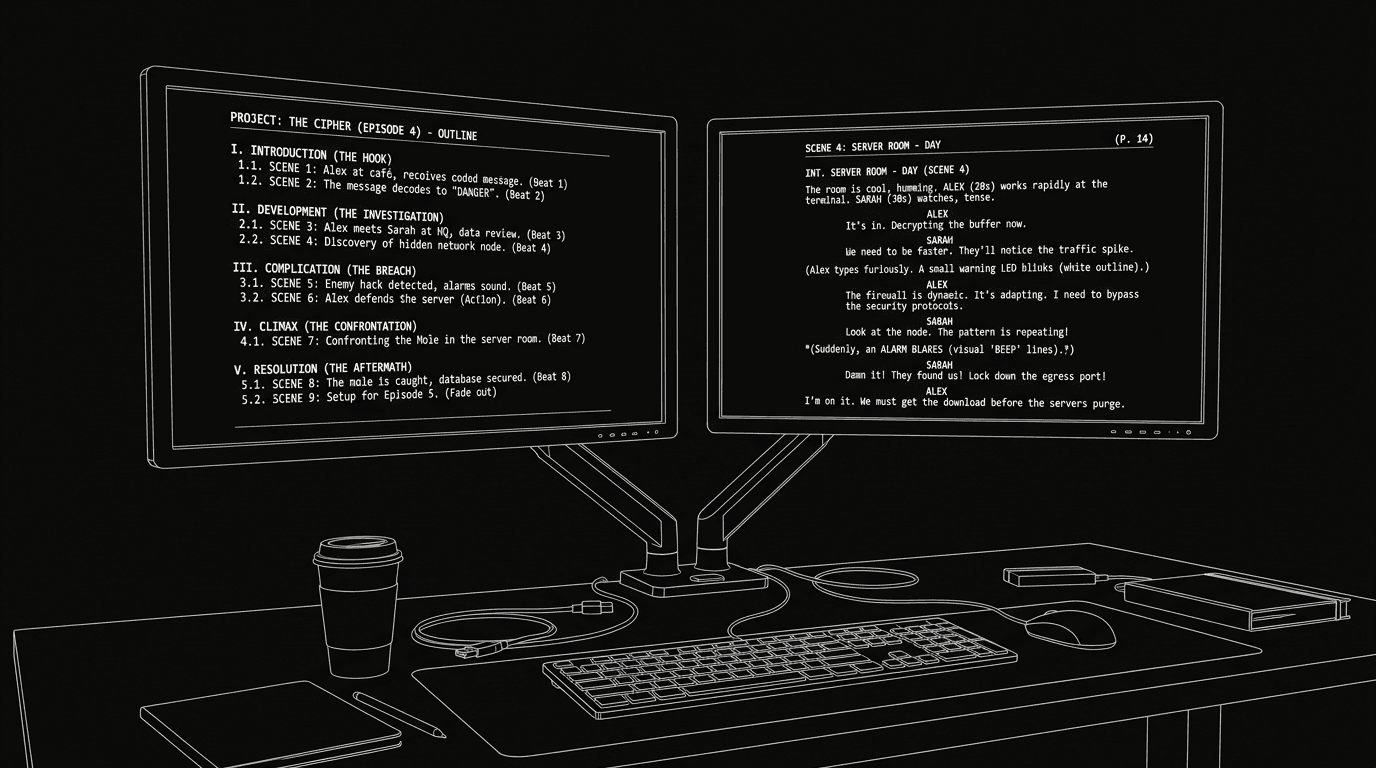

Cinematic workflow frames
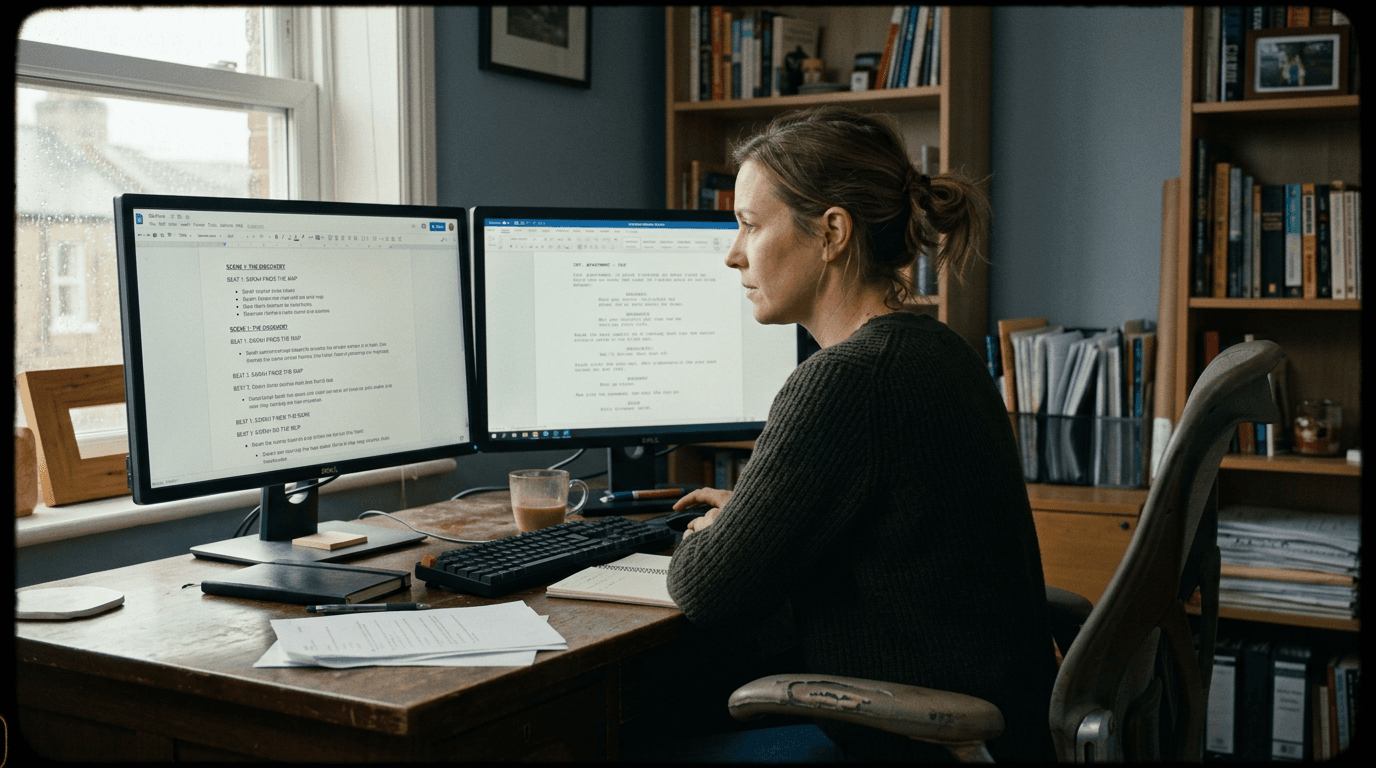
These two visuals work as a pair: the first shows Cinematic workflow still, first angle, 35mm film grain, and the second shifts to Cinematic workflow still, second angle, 35mm film grain—compare them briefly, then move on.
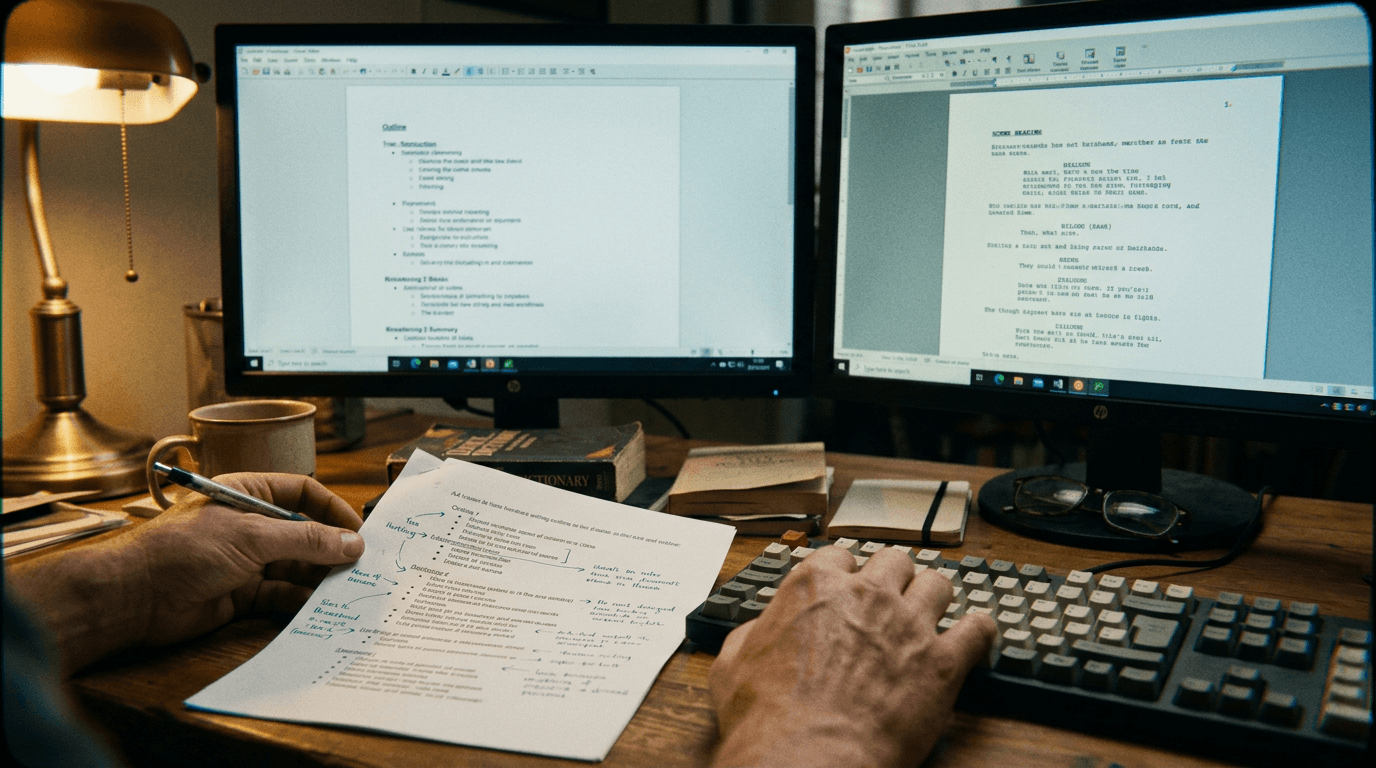
Dual Monitors: The Ideal Desk Setup to Link Your Outline to Your Script
You're rewriting Act Two. The outline says the next beat is "She discovers the lie." You're not sure which scene that is, page 52? 58? You alt-tab to the outline, find the beat, guess the page, switch back to the script, scroll. By the time you land, you've lost the thread.
Two screens fix that. Outline (or beat board, or research) on one. Script on the other. You look left to see what happens next; you look right to write it. No tab switching, no "where was I?"
Why Two Screens Help
Reduced context switching. Your brain stays in "writing" mode. The outline is always visible. You don't hold the whole structure in working memory while you scroll the script.
Faster navigation. You see the beat list or scene list on the left; you click or scan to the beat you need; you type on the right. Or you scroll the script on the right and track your position on the left. Either way, you're not hiding one view to see the other.
Room for research. Second screen can be outline + script split, or outline on one and script on the other, or script on one and a browser or notes on the other. You choose the split that matches the phase (drafting vs research vs revision).
Dual monitors don't make you more creative. They make the tools you already use, outline and script, visible at once. That's enough to cut a lot of friction.
A Practical Layout
Primary (main screen): Script. Full height, comfortable width. This is where you type. Put it where your eyes rest most of the time.
Try it free
Try Screenweaver for free on your script
It is free. Import your existing project, get a clearer view of your outline, and regain control of your story structure in minutes.
Start FreeSecondary: Outline, beat list, or scene tree. So you can glance to see "next beat" or "where am I in the act?" If your app has a timeline or beat board, put it there. If you use a separate doc, keep it open and zoomed so the headings are scannable.
Optional: On the secondary, you can also run a browser or a notes panel for research. But avoid stacking too many layers, outline + script is already a big win. See our organize historical research in one interface for when research needs to sit next to the script.
Scenario: Pitching Beats Into the Script
You're breaking story. You have a beat list on the left (in a doc or in your app's sidebar). On the right, the script. You click "Midpoint" on the left; the script jumps to that scene (if your tool supports it) or you scroll to it. You write the scene. You look left: next beat is "Bad Guys Close In." You click it or scroll the outline, then write that block. No alt-tab. No "which scene was that again?"
When You Don't Have Two Monitors
Laptop + external: One external monitor is enough. Put script on the big screen, outline on the laptop (or vice versa). Same idea.
Single screen: Use a side-by-side layout. Script takes 60–70% of the width; outline or scene list takes the rest. Or use a second device (tablet, phone) as a "second screen" for the outline if your app has a mobile view. Not ideal, but better than constant switching.
Ultrawide: One very wide monitor can simulate two: outline left third, script right two-thirds. Same principle, structure visible, script dominant.
The Trench Warfare: What Goes Wrong
Outline and script out of sync. You move a beat on the left but don't update the script (or the app doesn't support linked navigation). Fix: Use a tool where outline and script are one object (e.g. Living Story Map), or treat the outline as the source of truth and manually sync the script, then save.
Second screen becomes a distraction. Email, Slack, browser. Fix: Use the second screen only for outline/script/research. Close everything else. Or use a focus mode that hides notifications.
Too small or too far. Second monitor tiny or at a bad angle. Fix: Match resolution and size where you can; put the outline screen at the same height and distance so a glance is easy.
The Perspective
Dual monitors are a cheap, high-leverage upgrade. You're not buying creativity, you're buying continuous visibility of structure and script. Once you've written with the outline always in view, going back to one screen feels like writing with one hand tied behind your back.
[YOUTUBE VIDEO: Quick tour of a writer's desk: two monitors, outline on left, script on right; jumping from a beat to the corresponding scene and back.]
Final Step
Build your next script with Screenweaver
Move from ideas to production-ready pages faster with timeline-native writing and AI-assisted story flow.
Try Screenweaver