ScreenWeaver MCP
Your screenplay and storyboardinside Claude and ChatGPT
Paste one URL and sign in. Your assistant can then read your script, import a screenplay file, rewrite a scene and turn your notes into storyboard shots, straight in your ScreenWeaver project.
- Sign in with your account, no API key
- 22 tools, from script to storyboard
- Every script edit saved to History
Your AI assistantScreenWeaver
Import my Fountain draft into The Yellow Umbrella, then break scene 3 into shots: wide on the crossing, close-up on Seo-yeon, slow push in on the umbrella.
import_script· preview: 14 scenes, Seo-yeon and Min-jun linkedimport_script· imported at the end of the scriptcreate_shots· 3 shots created in scene 3
Done. The draft is in your script, and the previous version is saved in History. Scene 3 now has 3 shots: a wide shot, a close-up on Seo-yeon and a slow push in on the umbrella.
What you can ask
Your assistant works in the project, not next to it
No more copying a scene out of a chat and pasting it back into your editor. The assistant reads and writes your ScreenWeaver project directly, in proper screenplay format.
Import a screenplay file
Final Draft (.fdx), WriterDuet or Fountain. The assistant shows a preview first: scenes, characters, places, and names that look like ones you already have.Bring in a PDF or a scan
A screenplay as a PDF, a scan or photos of pages. ScreenWeaver reads the text layer, or runs OCR on scanned pages, and the assistant imports it as a real screenplay.Turn notes into shots
A director’s note, a shot list, a few lines typed on a phone. The assistant reads the scene and creates the storyboard shots with framing, camera movement and duration.Search the whole script
Every line where a character mentions the umbrella, every night exterior, every scene of episode 2. Answers point to the exact scene.Rewrite a scene
Tighten a dialogue, add an action line, fix a cue. The version before the change goes to History, so you can always go back.Adjust a shot
Change a shot to a close-up, slow the push in, give it four more seconds. Only the fields you name change.Start a new project
A film or a series, with its title and frame shape. The assistant creates it in your organisation and gives you the link.Turn comic pages into a storyboard
Send the PDF of a comic, a manga or a webtoon. Each page is cut into its panels, and the assistant can attach a panel to a shot as the reference for its storyboard image.Use your hand-drawn boards
Scan your storyboard. The assistant looks at each frame with its scene, creates the matching shots and connects each board to the shot’s panel generator.
Connect in two minutes
One URL, then sign in
ScreenWeaver is a remote MCP server: nothing to install. Your assistant opens a ScreenWeaver page, you sign in, you choose the projects it may open, and you allow it.
Reserved for accounts with credits: the Auteur and Studio plans include them.
Server URL
https://app.screenweaver.ai/api/mcpStreamable HTTP, sign-in with OAuth 2.1. Disconnect it any time from your ScreenWeaver account, in Connected apps.
- 1In Claude (web or desktop), open Settings, then Connectors.
- 2Click Add custom connector, name it ScreenWeaver and paste the server URL.
- 3Click Connect, sign in to ScreenWeaver, pick your projects and allow.
- 4In a conversation, open the + menu and turn ScreenWeaver on.
Custom connectors work on every Claude plan, with one custom connector on the Free plan. Menu names can move while the feature is in beta.
The tools
Twenty-two tools: ten that read, twelve that write
Your assistant picks the tool, you just ask. Reading, writing and importing a script spend nothing. Two steps cost credits: OCR on scanned pages (about half a credit per page) and finding the panels of a page (about one credit per page). Above 20 pages, the assistant asks you first. On a shared project, viewers can use the read tools; changes need owner or editor rights.
Read
list_projectsLists the projects you can open, with your role in each.list_organisationsLists the organisations where you can create projects.get_project_outlineGives the overview: episodes, scenes in order, counts of shots and story elements.get_sceneReads one scene, element by element, with linked characters and place.search_scriptFinds every line that contains a word or a phrase, filtered by element type if needed.list_entitiesLists your characters, places and objects, with their descriptions.list_shotsLists the storyboard shots in timeline order, with framing, camera, duration and action.get_groupReads a group of the canvas: its generators, prompts, references and images.view_mediaLooks at imported or generated images, or at a shot’s storyboard panel.get_guideReads the ScreenWeaver guide, so the assistant knows how the app works.
Write
create_projectCreates a film or a series with an empty script. Projects cannot be deleted from here.set_project_aspect_ratioSets the frame shape of the project, once you have chosen it.import_scriptImports a Final Draft, WriterDuet or Fountain file, after a preview you can check.extract_file_textTurns a PDF or photos of pages into text, with OCR for scanned pages.edit_scriptInserts, updates or deletes script elements. Deletes always need your yes.create_shotsCreates shots in a scene, in order, with framing, camera movement and duration.update_shotChanges the action, framing, camera, duration or continuation of one shot.delete_shotsDeletes shots after a preview you confirm. Generated images stay in the Generation Center.create_uploadPrepares the upload of a PDF or an image, up to 25 MB.import_mediaBrings comic pages, boards or reference pictures in as images, and can cut out each panel.add_reference_imagesConnects images to a shot’s panel, a story element or the art direction.set_promptRewrites a generator’s prompt or a story element’s text, with its references checked.
You stay in control
Your assistant asks before it touches your writing
The connection is yours, project by project. Every change is visible to your collaborators straight away, and every script change can be undone.
- You choose all projects or a list when you allow the connection.
- The script before each edit or import is saved to version History.
- Deleting lines or replacing a script needs your explicit confirmation.
- No tool deletes a project or a story element. Deleting shots shows you the list first and waits for your yes.
- Revoke access any time in Connected apps, in your account.
- Your assistant never sees your password, and sign-in tokens are stored hashed.
Script
The script lands in a real screenplay editor
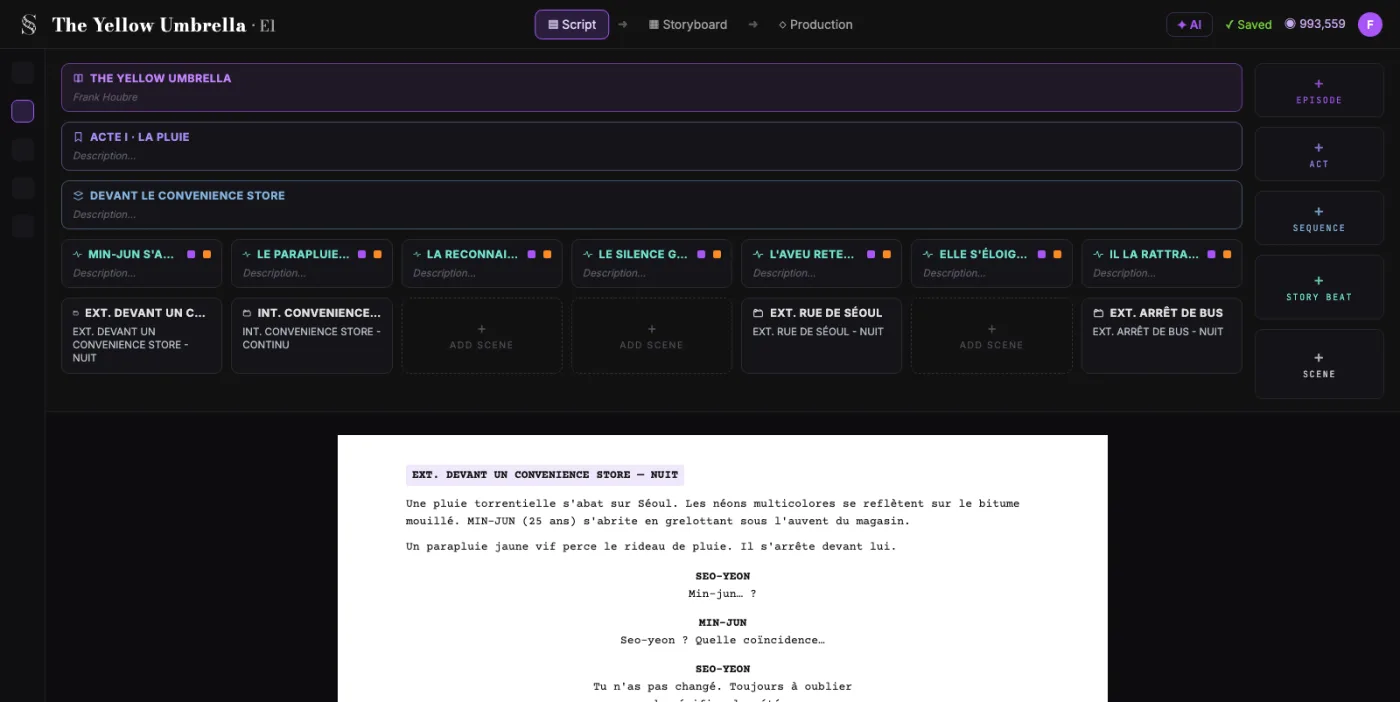
What your assistant writes arrives as scene headings, action, cues and dialogue, linked to your characters and places. You keep writing in ScreenWeaver, with industry formatting and Final Draft export.
- Character cues and scene headings linked to your story elements
- Near-miss names caught before import, like TOBY and TOBIAS
- Long scripts written in several passes
Storyboard
From a note in the chat to shots in the storyboard
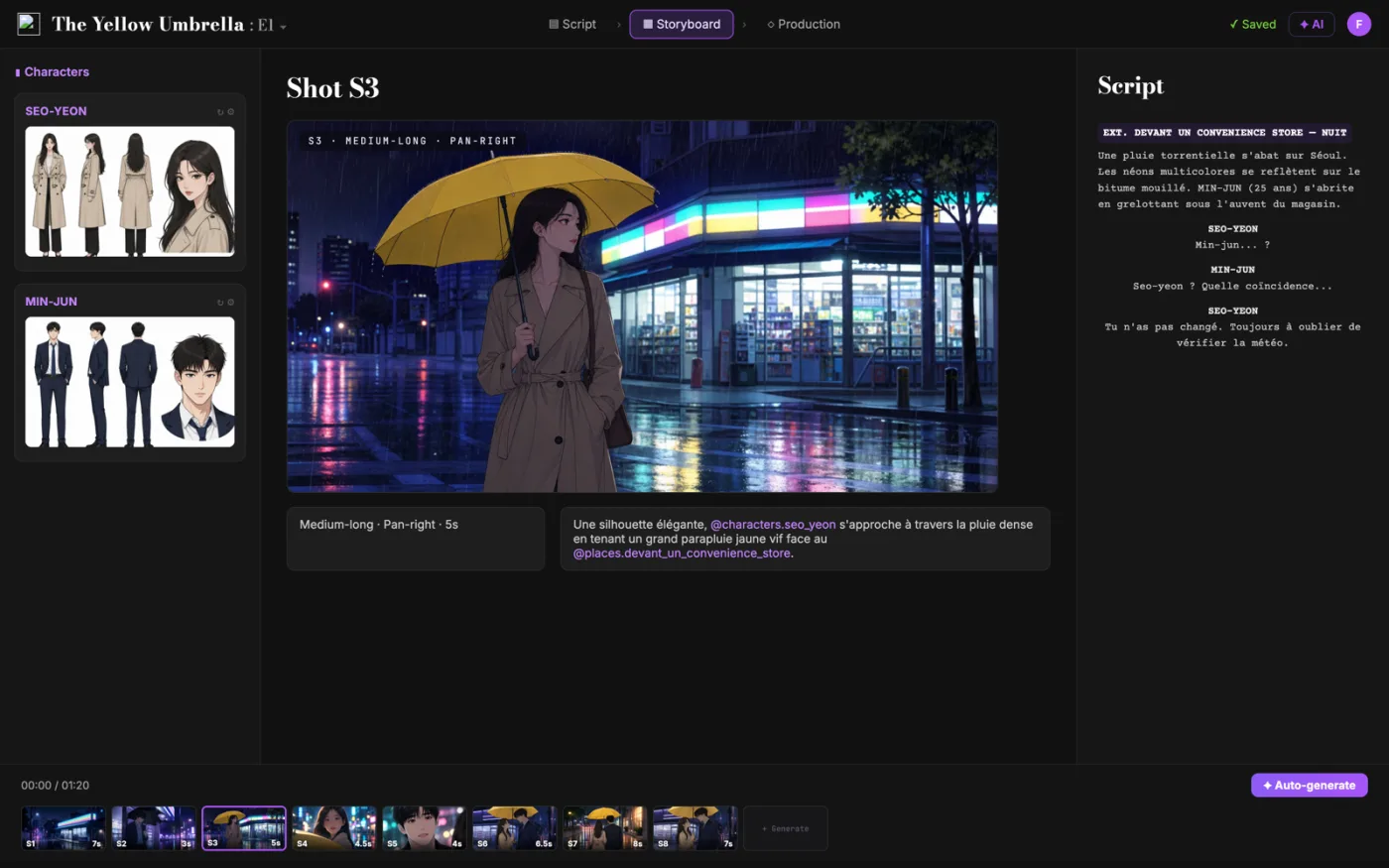
Describe the coverage you want. The assistant reads the scene, then creates the shots in order, each with its action, framing, camera movement and duration, and links continuations.
- Shots tied to their scene in the screenplay
- Continuous shots chained to the shot they extend
- Your collaborators see the shots appear live
FAQ
Questions about the ScreenWeaver MCP
What is the ScreenWeaver MCP server?
It is a remote server that speaks the Model Context Protocol, the standard AI assistants use to work with other apps. Once connected, Claude, ChatGPT, Cursor or another MCP client can read and edit your ScreenWeaver script and storyboard.
Do I need an API key?
No. You sign in with your ScreenWeaver account and allow the assistant, like any app that asks to connect. You can revoke it at any time in Connected apps.
Does it cost credits?
Access to the MCP is reserved for accounts with credits, included in the Auteur and Studio plans. Reading, writing and importing a script spend nothing. OCR on scanned pages costs about half a credit per page, and finding the panels of comic or storyboard pages about one credit per page: above 20 pages, the assistant asks you first.
Can it generate storyboard images or video?
Not yet. The assistant prepares everything around the generation: the shots, the prompts, the reference images, the art direction. You click generate in the Storyboard or Production tab, and every result stays in the Generation Center.
Which file formats can it import?
Final Draft (.fdx), WriterDuet and Fountain, or any screenplay-formatted text. A PDF, a scan or photos of pages go through text extraction, with OCR when needed. Comic pages, storyboard boards and reference pictures (PDF, PNG, JPEG or WebP, up to 25 MB) come in as images.
Can the assistant delete my work?
It cannot delete a project or a story element. Deleting script lines or replacing the whole script needs your explicit confirmation, and the previous version is saved in History. Deleting shots shows you the list first and waits for your yes; that deletion cannot be undone from History.
Can it create a new project?
Yes. Tell it the title and whether it is a film or a series: it creates the project in your organisation and gives you the link. It cannot delete a project.
Does it work with my collaborators?
Yes. Changes made by the assistant appear live for everyone in the project. On a shared project, viewers can use the read tools, and owners and editors can make changes.
Give your assistant a real screenplay to work on
Paste the URL, sign in, and ask for your first scene. It can go from a chat to the storyboard.